Showing posts with label excel. Show all posts

Monday, 7 October 2013

Create an Excel Soccer League Table Generator


Need a league table generator for a sports league you compete in or manage?

I love sport and Excel to merge the two is enjoyable for me. I have created a league table generator in Excel so that when results are entered for a fixture, the league table will calculate and rank each team accordingly.

Excel soccer league table generator


You don't need to do a thing. After setup just enter the results and let the league table take care of the rest.

Download the Excel league table generator

To use the spreadsheet;
  1. Enter the team names onto the Teams sheet
  2. Enter the fixtures onto the fixtures sheet (check out my Excel fixture list creator)
  3. Enter the results as they happen
Check out the Create sports league tables and tournament in Excel online course and learn how you can set up your own league tables now.
 

Friday, 9 August 2013

Calculate Length of Service in Excel

If you are using Excel to store data about employees in a company, you may at some point need to calculate their length of service. Let’s say we want to return how many years and months an employee has worked for our company.

The DATEDIF function in Excel is used to calculate the difference between two dates. The difference can be returned as the number of years, months or days.

As we wish to return the number of years and months that they have worked we will concatenate two DATEDIF functions together.

Thursday, 25 July 2013

Use Comments for Storing Large Amounts of Text

Excel was built to handle records of data that contain labels, values and formulas. Storing large amounts of text is not its priority meaning your spreadsheets can become long, wide and awkward.

Typically to accommodate bulk text columns such as for descriptions and notes you will make the column wider, apply wrap text to the cells, or a bit of both. These features can help, but another option available to you is to store the text in a comment.

By storing the text in a comment box it is only visible when you want it. By not storing it in a cell your spreadsheet remains easy to navigate and use daily.

Thursday, 18 July 2013

Netball League Table Generator in Excel

I recently helped a reader out by creating a netball league table generator in Excel.

She wanted to be able to enter the results onto a sheet and have the league table automatically update to rank teams appropriately.

The spreadsheet allows 5 points for a win and 3 for a draw. 1 point is earned if the losing team scores half the points of the winning team. It also provides the ability deduct penalty points from a team.

Monday, 17 June 2013

Import Data from the Web into Excel

You can import data from the web into Excel for analysis and reporting. When data is imported from the Internet, a connection is established. This means that the link can be updated, and you will not have to repeat this import process every time the data is needed.

For this example, we will look at importing data from www.soccerstats.com. This is a favourite site of mine. It contains up to date statistics from soccer leagues all over the world. We will import the La Liga top scorers table.

Thursday, 25 April 2013

Create a Speedometer Chart in Excel


Speedometer charts are used to measure performance. As a speedometer can be found on any car dashboard they are instantly recognisable, and will add a certain style to your Excel dashboards.
Excel does not provide one as a default chart type, so to create a speedometer chart in Excel we will need a donut chart, a pie chart and a little ingenuity.
The Donut chart will be used for the speedometer background and the Pie chart will be positioned on top to create the needle.
Being a big fan of the UFC, I thought I would create a speedometer chart to display the percentage of victories by UFC Welterweight champion Georges St. Pierre that have come via by stoppage (submission, KO or TKO).
Create a speedometer chart in Excel


Wednesday, 17 April 2013

Add a Running Total Column to your Spreadsheet

A running total column can be added to a spreadsheet to maintain a cumulative total for a series of values. This could be used to track a list of inventory, or a list of account transactions.

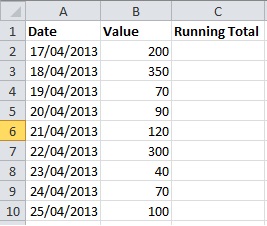
In the example below I want to add a running total of column B into column C.


List of values
.